Introducing Monitors: Get Notified When the Web Changes
Watch sources, collections, or individual pages in Bulkgrid. Filter for meaningful changes and receive alerts by email, Slack, or webhook.
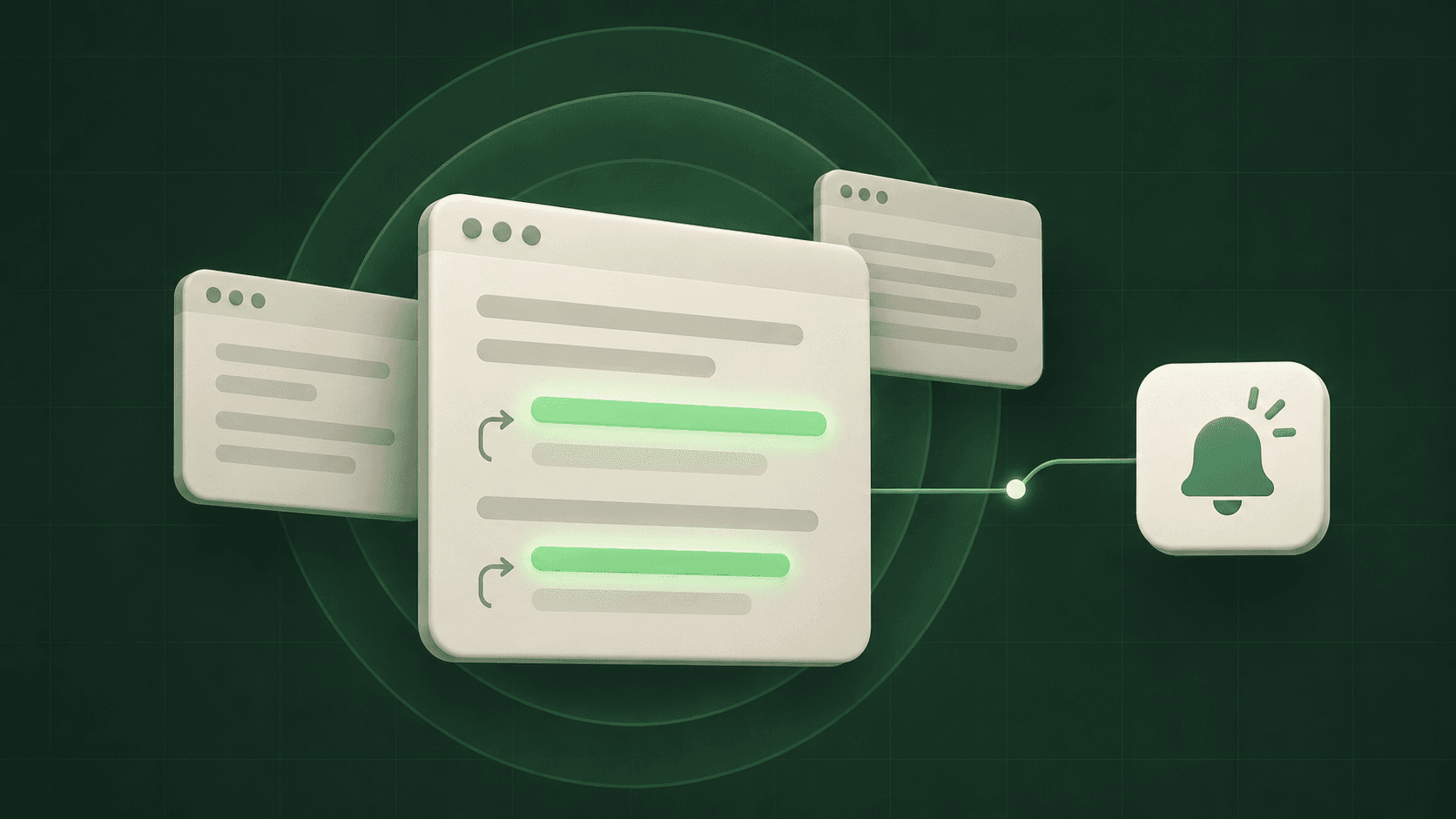
A pricing page changes. An API adds a new limit. A policy gets updated. The information is there, but someone still has to notice it.
We’re introducing Monitors in Bulkgrid: a way to watch the content you care about and receive a notification when a relevant change is detected. Choose what to watch, describe what matters, and send alerts to email, Slack, or your own application.
Watch a source, a collection, or a few pages
Monitors work with the way you already organize information in Bulkgrid. Watch a Source to follow one existing source, or a Collection to follow the sources and content grouped inside it.
For a more focused watch, choose Pages and paste the URLs you want to track. They can come from different websites—for example, the pricing pages of three tools your team uses.
Source and collection monitors follow the sources’ existing refresh schedules. Individual page monitors have their own schedule: hourly, every six hours, daily, weekly, or monthly. Pages monitoring is available on Developer and higher plans, and the form shows estimated monthly credits before you create the monitor.
Tell Bulkgrid what matters
Choose General to watch for meaningful new, updated, or removed information. This is a useful starting point when you want to keep up with a source without defining a particular topic.
Choose Specific when you have a question in mind. Describe the changes you want to hear about in plain language:
Notify me when pricing, included usage, or plan limits change.
Bulkgrid evaluates detected changes against that description. Specific monitors also have a Sensitivity setting: High allows more possible matches through, while Low requires a closer match to your description.
Both modes evaluate changes in extracted page content. They are designed to filter out temporary noise, such as cookie-banner visibility or rotating page elements, while keeping meaningful information changes. Monitors track content, rather than visual layout or screenshot differences.
Choose which changes deserve an alert
A small wording adjustment and a major pricing change do not need the same attention. Minimum importance lets you choose how much should reach your notifications:
- High: notify only for changes assessed as High importance.
- Medium: include Medium and High importance.
- Low: include Low, Medium, and High importance.
- All: do not filter by importance.
Your General or Specific rules still apply when you select All. Sensitivity controls how closely a change must match a Specific description; importance controls which evaluated changes are significant enough to send.
Send updates where your team works
Receive alerts by email, connect a Slack channel, or use a webhook to trigger your own workflow. You can enable more than one destination for a monitor.
To use Slack, a workspace owner or admin connects a channel in Settings → Integrations. You can then select that channel in the monitor’s notification settings. Email alerts are sent for individual matching changes, so you do not have to wait for a digest.
See what changed, with context
Each monitor has its own details page with settings, status, and Change history. Open a change to inspect the before-and-after content and see whether information was Added, Changed, or Removed.
History also shows the assessed importance and whether a change was Sent or Filtered. Filtered changes remain available to inspect, helping you understand what your settings are leaving out. You can adjust the monitor or pause it from the same page.
Start with one thing you keep checking
Try a pricing page, a documentation source, or a collection your team relies on. Open Monitors in your dashboard, select New monitor, choose what to watch, and set your notification preferences.
A new Pages monitor uses its first successful check as a baseline. Later checks can trigger alerts when relevant changes appear. Checks follow the configured refresh schedule, so notifications arrive after Bulkgrid refreshes and evaluates the content.
The next time that information changes, your monitor can bring it to you.