How to Convert PDF to Markdown
Convert PDF to Markdown with BulkParse. Inspect scanned pages, understand OCR requirements, review tables and diagnostics, and try hosted parsing.
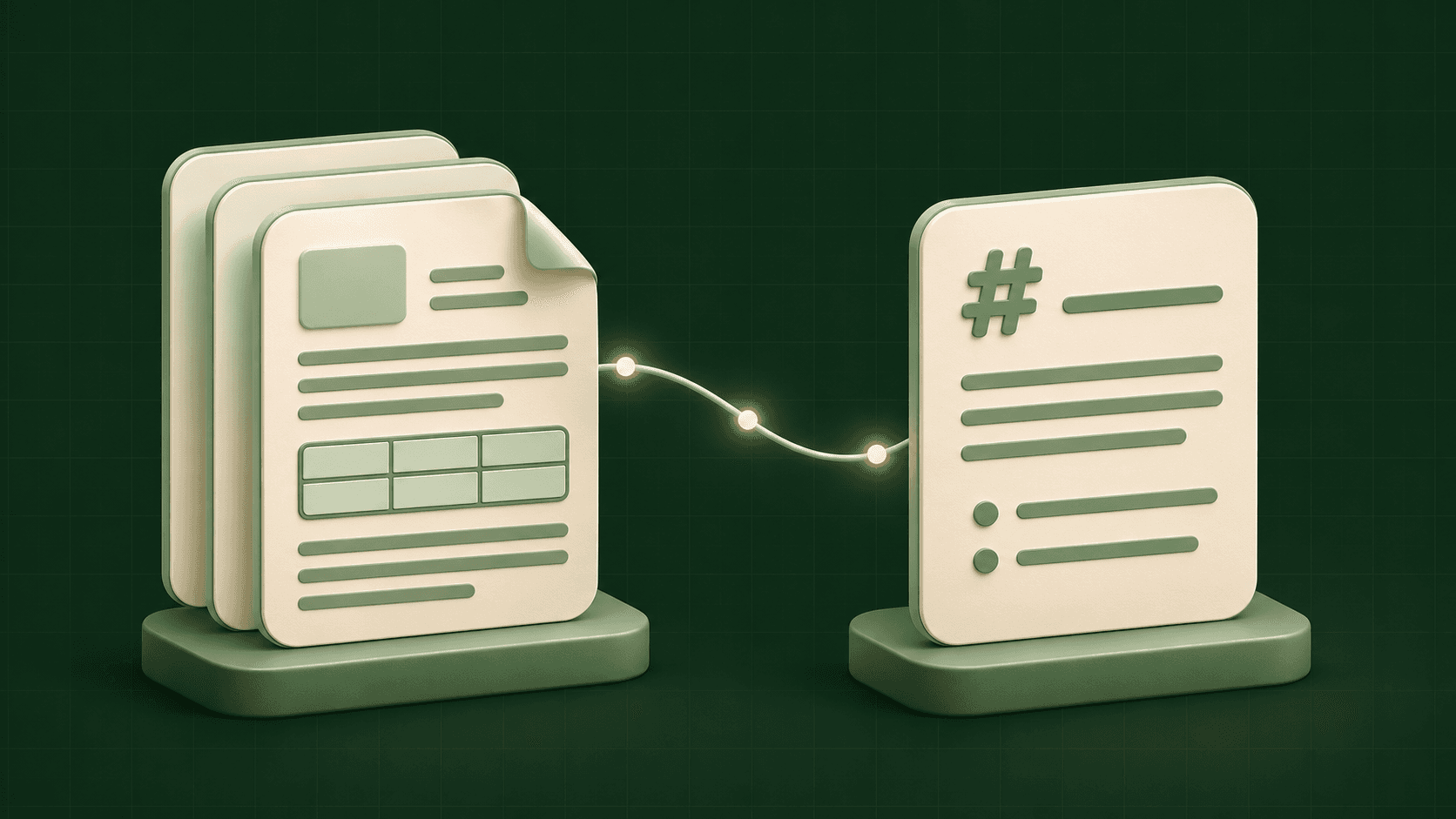
A PDF can look perfectly readable while giving a parser very little information about its structure. Text may be positioned one fragment at a time, and scanned pages may contain no embedded text at all. Converting PDF to Markdown means recovering readable content and checking where the conversion is incomplete.
This guide shows how to convert a PDF locally with BulkParse, inspect pages that may need OCR, and review the result before using it in documentation, search, or an AI workflow.
Convert a PDF to Markdown
With Node.js 20 or newer installed, run the BulkParse CLI against a file on your machine:
npx @bulkgrid/bulkparse parse report.pdf -o report.mdReplace report.pdf with your input path and choose a new output filename. The first invocation may download the package. Ordinary native parsing processes document bytes locally and does not require a Bulkgrid account or an external parsing API.
Open the generated Markdown beside the source PDF. Check the document title, paragraph order, section headings, lists, and any tables you plan to use. Pay particular attention to pages with multiple columns or content positioned in sidebars.
The CLI reports exit code 0 for complete conversion, 2 for partial conversion, and 1 for failure. A partial result can still contain useful Markdown. Native PDF conversion currently reports partial coverage by design, so exit code 2 should trigger review rather than an assumption that no file was produced.
Inspect the PDF before choosing OCR
Run inspection separately when the document contains scans or conversion produces little useful text:
npx @bulkgrid/bulkparse inspect report.pdfInspection examines every page and reports structural classifications and OCR-routing recommendations. It does not perform text recognition. A PDF can contain both native text and scanned pages, so make the decision at page level where possible.
For a document made entirely of scanned images, ordinary native extraction cannot recover text from those image pixels. Use an OCR-enabled setup. BulkParse supports local OCR, but its native libraries and models require separate provisioning; installing the parser alone does not complete that setup.
Follow the OCR setup guide for the configuration supported by your platform. If you prefer hosted processing, use the Bulkgrid Parse playground, whose supported scanned PDFs and images use automatic OCR.
Keep the extraction diagnostics
Markdown is convenient to read, but it is only one part of the result. Export JSON when you need extraction status, diagnostics, document blocks, and available source references:
npx @bulkgrid/bulkparse parse report.pdf --to json -o report.jsonDiagnostics help distinguish detected missing content from formatting limitations and unverified coverage. A complete status is not a guarantee that every detail matches the original. Review representative pages even when the parser reports no failure.
For example, if a two-column report combines the end of one column with the start of another, the Markdown may be readable while changing the argument's order. Compare the actual paragraphs rather than checking only that output is nonempty.
Tables, images, and layout
PDF tables are reconstructed from the available evidence. Check row boundaries, column alignment, merged cells, and numbers against the original before relying on them. Some table structures render as HTML inside Markdown, so the destination renderer must support that representation.
Markdown does not preserve the PDF's visual page design. Page dimensions, exact positioning, typography, and decorative elements are not its purpose. BulkParse does not support PDF embedded-image export; keep the original PDF when images or diagrams carry information that is absent from extracted text.
For search and RAG, store the original filename and the structured source references alongside the Markdown. Parsing prepares content; chunking, embeddings, indexing, and retrieval are separate steps.
Convert a folder of PDFs
For native conversion of a directory, use a separate output directory:
npx @bulkgrid/bulkparse batch ./pdfs --output ./convertedBatch conversion is sequential, continues after individual file errors, and does not overwrite existing output files. Review each file's result. CLI batch OCR is not implemented, so do not use this command as an OCR workflow for a directory of scans.
Try hosted parsing or integrate locally
Use Bulkgrid's Parse playground to try a document and inspect its Markdown without installing the local parser. Open your workspace for private-file parsing. The hosted service uploads the file for processing; that is a different execution path from running BulkParse on your own machine.
For application integration, see Parse documents with Python or Parse documents with Node.js. The BulkParse repository contains the current format support, installation instructions, and extraction limitations.
